
How to Transfer Skins to Another Account in CS2 Safely in 2026
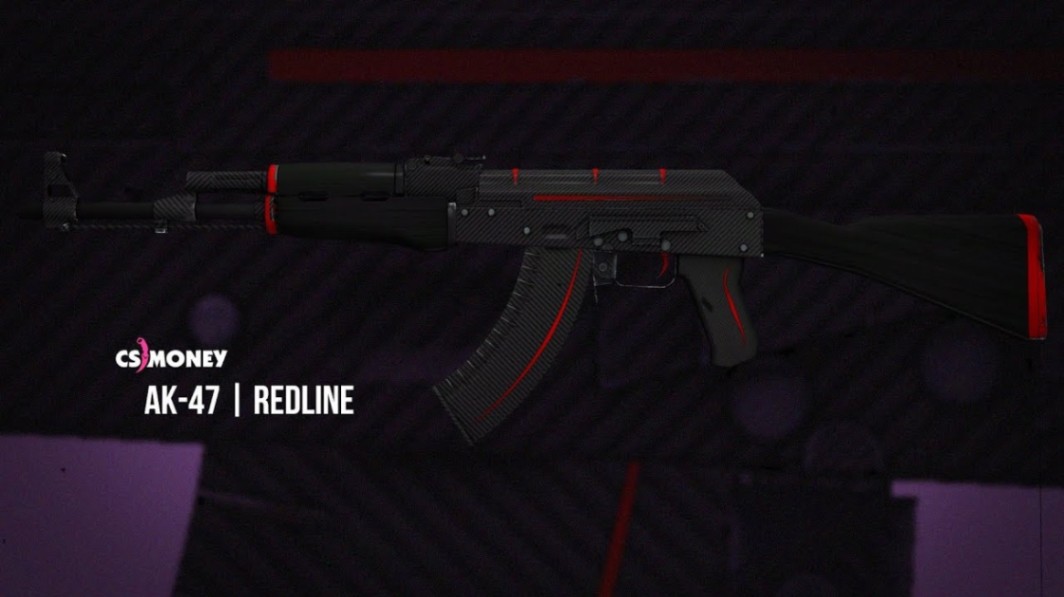
Moving your favorite CS2 skins between Steam accounts should be simple. Whether you're sending an AK-47 | Redline to a friend, transferring a rare knife to your second account, or reorganizing your inventory, knowing how to transfer skins to another account safely can save you from costly mistakes.
Steam's built-in trading system makes the process relatively straightforward, but trade restrictions, security checks, and scammers can complicate things.
How to Transfer CS2 Skins to Another Account: Quick Answer
The safest way to transfer CS2 skins is through Steam Trade Offers. Both accounts need access to Steam trading, and the items must be eligible for transfer.
Here's the basic process:
-
Open Steam and access your inventory.
-
Select Trade Offers from the trading menu.
-
Choose the Steam account receiving your skins.
-
Add the CS2 items you want to transfer.
-
Review the recipient's profile and every item in the offer.
-
Submit the trade and complete any required Steam Guard confirmation.
-
Wait for the transfer to finish, then check the receiving inventory.
You don't need a third-party marketplace to move skins between two Steam accounts.
However, CS2 item restrictions and Steam security requirements can affect when the recipient can use or trade the items.
1. Prepare Both Steam Accounts Before Trading
Before sending anything, make sure both accounts are ready.
A few minutes of preparation can prevent unnecessary delays, especially when you're moving valuable skins.
Enable Steam Guard Mobile Authenticator
Steam Guard helps protect your inventory from unauthorized access.
For smoother trading, both accounts should have the Steam Guard Mobile Authenticator enabled and satisfy Steam's applicable security requirements.
To set it up:
-
Install the official Steam mobile application.
-
Sign in to your Steam account.
-
Open the Steam Guard section.
-
Follow the instructions to activate the mobile authenticator.
-
Secure your recovery information.
Simply enabling Steam Guard immediately before trading won't necessarily remove existing restrictions. Some security changes trigger temporary limitations.
Check Your Inventory and Trade Eligibility
Not every CS2 item can be transferred immediately.
Before creating an offer, check whether the skin is tradable and whether Steam displays any restrictions.
Pay attention to:
-
Recently acquired skins with temporary trade restrictions.
-
Items affected by Steam account security limitations.
-
Skins that are temporarily unavailable for trading.
-
Account restrictions that prevent sending or receiving offers.
For example, an AWP | Asiimov may appear in your inventory but still be unavailable for transfer until its trade restriction expires.
Pro tip: Open the item's details in your Steam inventory before planning a transfer. Steam displays applicable tradability information there.
2. How to Transfer Skins to Another Account Using Steam
Steam Trade Offers are the standard method for sending CS2 items directly between accounts.
You can use them to send one skin, several weapons, or a larger collection.
Step 1: Open Steam Trade Offers
Sign in to the account holding the skins.
Navigate to your Steam inventory and open the Trade Offers section.
If you're trading with a friend, select the option to create a new trade offer and choose their account.
For another account you own, you can use an eligible Steam friendship or a valid trade-offer link.
Step 2: Select the Receiving Account
Double-check the destination profile before adding items.
This matters more than it might seem. Scammers sometimes imitate legitimate Steam profiles by copying avatars, usernames, and profile descriptions.
A familiar username alone isn't enough to verify someone's identity.
Step 3: Add Your CS2 Skins
Open your Counter-Strike 2 inventory inside the trade interface.
Select the skins you want to transfer and move them into the offer.
For example, you might send:
-
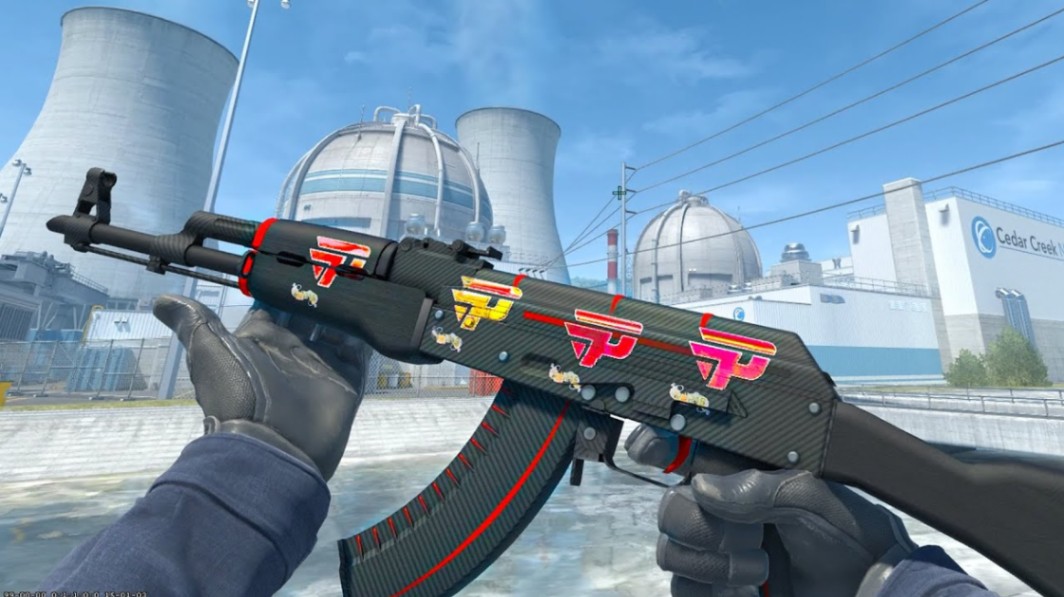
AK-47 | Redline — a popular rifle skin with a recognizable black-and-red finish.
-
AWP | Asiimov — a classic sniper skin with a futuristic design.

-
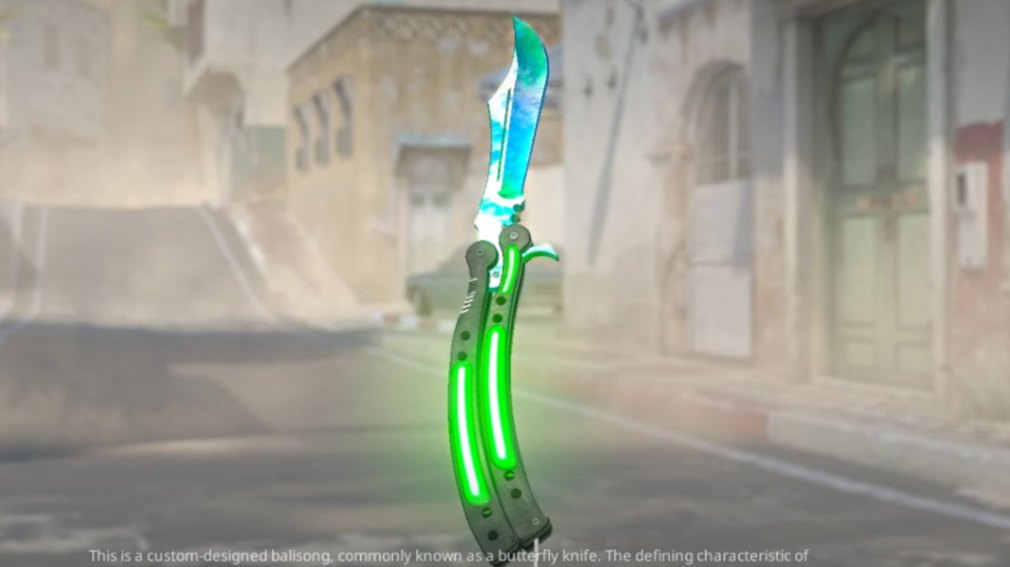
Butterfly Knife | Doppler — a collectible knife where the phase and finish details can significantly affect desirability.
If you're transferring an expensive item, inspect its exact characteristics before proceeding.
Two skins with the same name can have very different collector appeal.
Step 4: Review the Trade Offer
Before submitting, inspect everything carefully.
Confirm that the recipient is correct, the selected items match your intentions, and the trade doesn't include anything unexpected.
If you're transferring skins between accounts you own, the receiving side can be empty. This effectively makes the offer a one-way transfer.
Step 5: Confirm the Transfer
Submit the trade offer.
Depending on your account's security status, Steam may require confirmation through the mobile authenticator.
Check the confirmation screen carefully. If the recipient or item list looks different from what you expected, reject the confirmation and investigate.
Step 6: Check the Receiving Inventory
After the trade completes, sign in to the destination account and inspect its CS2 inventory.
Keep in mind that Steam's CS2 trade protection and other item restrictions may affect the item's status after delivery.
A successful transfer doesn't necessarily mean the skin is immediately available for another trade.
3. Understand CS2 Trade Holds and Trade Protection
One of the biggest sources of confusion when transferring CS2 skins is the difference between trade holds, item trade restrictions, and trade protection.
These systems serve different purposes.
|
Restriction |
What it means |
What to expect |
|---|---|---|
|
Steam trade hold |
Steam delays completion of a trade for security reasons |
Can last up to 15 days in applicable circumstances |
|
Item trade restriction |
A particular skin cannot currently be traded |
Wait until the displayed restriction expires |
|
Account trade restriction |
The Steam account is temporarily or otherwise prevented from trading |
Resolve the account issue or wait for eligibility |
|
CS2 Trade Protection |
Eligible completed CS2 trades may be reversible during a limited protection window |
Certain recently traded items can be subject to reversal for seven days |
Steam's Trade Protection system adds another layer of security to eligible CS2 item transfers.
It is particularly relevant when dealing with compromised accounts or unauthorized trades. However, reversing a protected trade can have consequences, including trading restrictions, and should not be treated as a routine way to undo a deal.
For current rules, consult the official Steam Support pages.
4. Can You Transfer CS2 Skins Between Your Own Accounts?
Yes. Steam generally allows players to trade eligible CS2 items between accounts they control, provided the accounts meet the trading requirements.
This can be useful if you're organizing a large inventory or keeping collectible skins separate from your everyday loadout.
For example, you might use one account for regular matchmaking and another to store rare knives, souvenir weapons, or sticker crafts.
The transfer process is essentially the same as trading with another player.
However, there are several things worth remembering.
Your Accounts Have Separate Inventories
CS2 inventories belong to individual Steam accounts.
A skin purchased or received on one account doesn't automatically become available on another account.
To move it, you must complete an eligible trade.
You Cannot Bypass Trade Restrictions
Owning both accounts doesn't give you special trading privileges.
If a skin is temporarily untradable, you'll need to wait until Steam permits its transfer.
Likewise, account security restrictions apply regardless of whether the sender and recipient belong to the same person.
Use Direct Transfers Whenever Possible
For moving skins between accounts you control, Steam's native trading interface is usually the simplest choice.
There's no reason to introduce a marketplace intermediary when a direct trade can accomplish the same goal.
5. Steam Trading vs Third-Party Skin Marketplaces
Third-party CS2 marketplaces can be useful when buying, selling, or exchanging skins.
But they're not generally necessary for moving items directly between your own Steam accounts.
|
Feature |
Steam Trade Offers |
Third-Party Marketplaces |
|---|---|---|
|
Direct account-to-account transfers |
Yes |
Depends on the service |
|
Requires a separate marketplace account |
No |
Often |
|
Supports one-way skin transfers |
Yes |
Depends on the platform |
|
Steam trading restrictions apply |
Yes |
Yes, when Steam transfers are involved |
|
Additional platform fees |
No direct Steam trade fee |
May apply |
|
Main purpose |
Direct item trading |
Buying, selling, or exchanging skins |
Platforms such as Skinport, BUFF163, and CS.MONEY serve different marketplace needs.
If your only goal is moving an AK-47 skin from one Steam account to another, adding a third-party service can create unnecessary steps.
For general trading strategies, see [Placeholder: CS2 Skin Trading Guide → URL].
6. How to Avoid Scams When Transferring CS2 Skins
CS2 inventories can contain valuable items, making Steam trading an attractive target for scammers.
A convincing fake profile or phishing page can turn a simple transfer into an expensive mistake.
Watch Out for Fake Steam Profiles
One common scam involves impersonating the intended recipient.
A scammer copies a friend's Steam avatar and username, hoping you'll send your skins to the wrong account.
Before accepting or confirming an offer, verify the destination account through its actual Steam profile and trusted contact details.
Avoid Suspicious Trade Links
Never sign in through an unfamiliar website claiming that you must verify your inventory before trading.
Legitimate Steam trades don't require you to deposit skins into a separate verification account.
Be especially cautious of websites promising to remove trade restrictions or accelerate transfers.
Protect Your Steam Credentials
Never share your Steam password, mobile authenticator codes, or recovery information.
Use Steam's official website and application, and review unexpected sign-in requests.
If you suspect your account has been compromised, secure your Steam account before attempting further trades.
Check Every Confirmation
Even if the initial trade offer looks correct, inspect the final mobile confirmation.
A changed recipient, unexpected item list, or unfamiliar profile is a reason to stop immediately.
For more security advice, read [Placeholder: How to Avoid CS2 Skin Scams → URL].
7. Can You Gift CS2 Skins Without Trading?
Steam doesn't provide a universal gift button for existing CS2 weapon skins.
Steam's gifting features are primarily designed for eligible games, digital gift cards, and supported purchases rather than direct transfers of inventory cosmetics.
If you want to give someone a skin you already own, a one-way Steam Trade Offer is generally the appropriate method.
For example, you could send a friend an M4A1-S | Printstream without asking for an item in return.
However, gifting doesn't bypass Steam trade holds, item restrictions, or applicable trade protection.
A gift sent through a trade is still subject to the relevant trading rules.
8. What to Check Before Transferring Expensive Skins
High-value CS2 items deserve extra attention.
A regular weapon skin may be easy to replace, but a rare pattern, low float, or valuable sticker combination can make an individual item much harder to find.
Float and Wear
CS2 skins have wear values that affect their appearance and, in many cases, their market desirability.
The standard wear categories are:
|
Wear |
Float range |
|---|---|
|
Factory New (FN) |
0.00–0.07 |
|
Minimal Wear (MW) |
0.07–0.15 |
|
Field-Tested (FT) |
0.15–0.38 |
|
Well-Worn (WW) |
0.38–0.45 |
|
Battle-Scarred (BS) |
0.45–1.00 |
These are the standard category boundaries; individual finishes may have narrower available float ranges.
Before transferring a collectible item, verify that you're sending the intended wear variant.
Pattern and Finish
Some CS2 skins have pattern variations that affect their appearance and collector appeal.
This is especially important for finishes such as Case Hardened and Doppler.
For example, a Butterfly Knife | Doppler's phase matters when identifying and evaluating the item.
Inspect the actual skin rather than relying only on its marketplace name.
Stickers and Special Variants
Sticker crafts can add another layer of value.
A weapon featuring rare Katowice 2014 stickers or desirable holo combinations may be more collectible than an otherwise identical skin.
Also verify whether an item is StatTrak or Souvenir when those variants exist.
For more information, see [Placeholder: CS2 Float and Pattern Guide → URL].
9. Common Mistakes When Moving CS2 Skins
Most transfer problems come from rushing, misunderstanding Steam restrictions, or trusting the wrong account.
Here are the mistakes worth avoiding.
|
Mistake |
Why it's risky |
Better approach |
|---|---|---|
|
Sending to the wrong profile |
Your skins may reach a stranger |
Verify the recipient before confirmation |
|
Ignoring trade restrictions |
The transfer may be blocked or delayed |
Check item eligibility first |
|
Using fake verification websites |
Your account or inventory may be compromised |
Use official Steam trading tools |
|
Forgetting float or pattern details |
You may transfer the wrong collectible item |
Inspect each valuable skin |
|
Assuming trades are always irreversible |
You may misunderstand CS2 Trade Protection |
Review current Steam reversal rules |
|
Expecting instant retrading |
Received skins may remain restricted |
Check the item's displayed availability |
Note: If a trade doesn't go through, don't immediately repeat it through an unfamiliar service. Check your Steam trade history and account notifications first.
10. What Happens After You Transfer a Skin?
Once the trade completes, the recipient receives the eligible items in their Steam inventory.
However, several details are worth understanding.
The skin keeps its existing cosmetic characteristics. Trading doesn't reroll its float, pattern seed, stickers, or StatTrak counter.
Steam may still apply restrictions that prevent the recipient from immediately trading the item again.
And if the trade is covered by CS2 Trade Protection, the applicable reversal period can affect the finality of the transfer.
If you plan to sell or trade the skin again, check its current status before making promises to another player.
Key Takeaways
-
Steam Trade Offers are the simplest way to transfer CS2 skins between accounts.
-
Enable Steam Guard Mobile Authenticator and satisfy the relevant security requirements before trading.
-
Check trade holds, item restrictions, and CS2 Trade Protection before moving valuable cosmetics.
-
Verify the recipient's Steam profile and inspect every skin before confirming.
-
Direct transfers don't require third-party marketplaces or additional verification websites.
-
Rare patterns, low floats, StatTrak variants, and sticker crafts deserve extra attention.
FAQ: How to Transfer Skins to Another Account in CS2
Can I transfer CS2 skins to another Steam account for free?
Yes. Steam doesn't charge a direct fee for sending eligible CS2 skins through Trade Offers. However, the accounts and items must meet Steam's trading requirements.
How long does it take to transfer CS2 skins?
An eligible trade may complete quickly after the required confirmations. Steam trade holds, account restrictions, and item trade restrictions can delay the process. CS2 Trade Protection may also apply after a completed transfer.
Can I transfer skins between two Steam accounts I own?
Yes, provided both accounts are eligible to trade and the selected skins are tradable. You can send a one-way trade offer from one account to the other.
Can I transfer CS2 skins without Steam Guard?
Some trades may be possible without the mobile authenticator, but additional holds or restrictions can apply. Using Steam Guard Mobile Authenticator is strongly recommended for security and smoother trading.
Can I cancel a CS2 skin transfer after accepting it?
You can generally cancel a pending offer before it is accepted. For completed trades, eligible CS2 Trade Protection reversals may be available during the applicable window, but they have important conditions and consequences. Don't assume every completed trade can be undone.
Will my CS2 skin lose its float, stickers, or pattern after a transfer?
No. A normal Steam inventory transfer doesn't change the skin's float, pattern seed, applied stickers, or existing StatTrak count. The item's cosmetic characteristics remain the same.